
Add Product
How to Add a WooCommerce Product
You need to add products, and you just need a product name and a price to begin. On this page, you’ll learn how to add the various types of core WooCommerce products.
1.Adding a Simple product
Let’s add a Simple product. You’ll need:
- Product name
- Product’s regular price
- Product image (from your Media Library)
The following example results in a basic product listing, without a description, assigned to the default “Uncategorized” product category:
- Go to WooCommerce > Products > Add Product.
- Enter a Product name.
- In the Product data > General section, the Product typeshould default to Simple product.
- Enter amounts for Regular price, Sale price, and Cost of goods as applicable.
- If needing to track inventory, see our Inventory section of the Product data documentation.
- In the Product imagepanel in the right-hand column, click the Set product image
- Select the image you want to use and click the Set product image
- Select an existing categoryby ticking the checkbox.
- Example: Mens Health,Womens Health etc.
- If the category does not exist:
- Click + Add new category
- Enter Category name
- Select Parent category(optional)
- Click Add new category.
- Click the Publishbutton in the Publish
- Click the View productlink at the top of the screen to view the newly created product.
Prescribery Sync Product
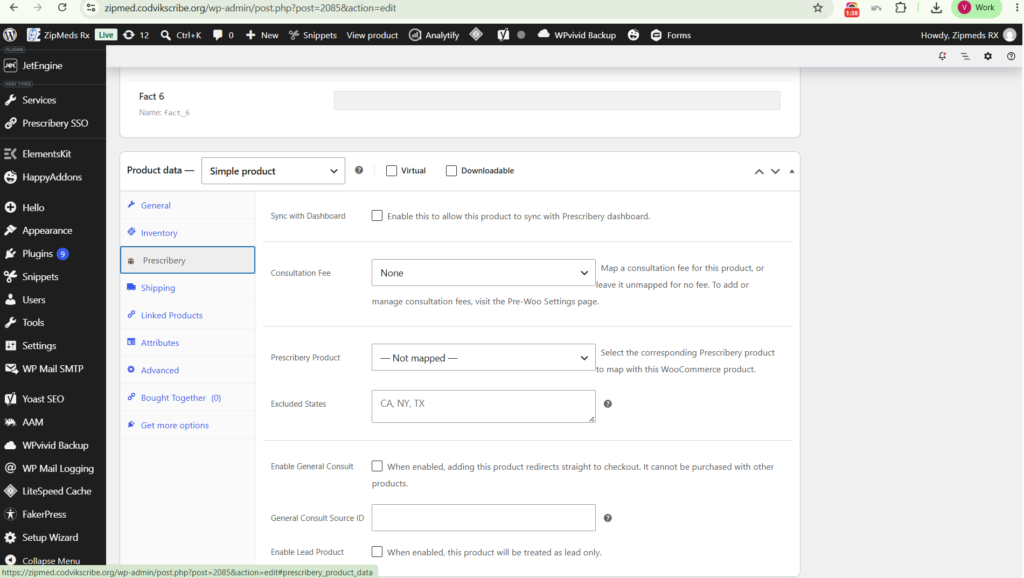
Each WooCommerce product now includes a new tab:
Product → Product Data → Prescribery → Sync with Dashboard
Enable this checkbox for every product that should:
Sync with the dashboard
Add the blood works and consultation fee
Select the product to sync with Prescribery
If disabled, the product will not interact with the Prescribery Dashboard.
Add a Coupon in WooCommerce
Step 1: Access the Coupons Section
- Log in to your WordPress dashboard.
- Go to WooCommerce → Coupons.
- You’ll see the list of existing coupons.
- Click Add New Coupon to create a new discount coupon.
- Enter the Coupon Code you want customers to use.
- Example: WELCOME20
- Add a description if needed to identify the purpose of the coupon.
- Under the General section, select the Discount Type:
- Percentage discount – Example: 20% off.
- Fixed cart discount – A fixed amount is deducted from the cart total.
- Fixed product discount – A fixed amount is deducted from selected products.
- Enter the Discount Amount.
- Set the Coupon Expiry Date if required.
- Scroll to the Usage Restriction section.
- Set a Minimum Spend or Maximum Spend if required.
- Select specific Products or Categories if the coupon should apply only to certain items.
- Exclude specific Products or Categories if needed.
- Choose whether the coupon can be used with other coupons.
- Set whether the coupon applies to Sale Items.
- Go to the Usage Limits section.
- Set the Usage Limit per Coupon if required.
- Set the Usage Limit per User if needed.
- Leave these fields blank if there is no usage limit.
- Review all the coupon settings.
- Click Publish to create the coupon.
- The coupon is now available for customers to use during checkout.
- Customers can enter the coupon code in the Cart or Checkout page.